I wanted to know exactly what my home devices are doing on the network — which servers they phone home to, how often, on which ports. Rather than buying a managed switch or spinning up pfSense on dedicated hardware, I repurposed a Raspberry Pi 5 as a transparent WiFi router that logs everything.
The result: every device connects to a Pi-hosted WiFi network, and the Pi captures destination IPs, ports, and DNS queries for each device in real time.
Architecture
[Rogers Modem / ISP]
        |
    [eth0 - Pi 5]  ← WAN (DHCP from modem)
        |
    Pi 5 routes + NATs + logs all traffic
        |
    [wlan0 - Pi 5]  ← WiFi AP  "PiMonitor"
        |
Your devices (192.168.50.x)| Layer | Tool |
|---|---|
| WiFi access point | hostapd |
| DHCP + DNS for devices | dnsmasq |
| NAT / routing | nftables |
| Traffic logging (IP + port) | nftables log |
| DNS query logging | dnsmasq log-queries |
Hardware
- Raspberry Pi 5 (4 GB or 8 GB)
- NVMe SSD via M.2 HAT (recommended) or microSD
- Ethernet cable to modem/router
Phase 1 — Flash the OS
Flash Raspberry Pi OS Lite (64-bit) with Raspberry Pi Imager. In the ⚙️ settings panel before flashing:
- Hostname:
pi-monitor - Enable SSH (password auth is fine for home use)
- Username / password: your choice
- Skip WiFi — we’ll configure it as an AP manually
Phase 2 — First Boot
Connect the Pi to your modem via ethernet, SSH in, and update:
sudo apt update && sudo apt upgrade -y
sudo reboot
Phase 3 — Install Packages
sudo apt install -y hostapd dnsmasq nftables curl git wget tcpdumpPhase 4 — WiFi Access Point (hostapd)
Create the hostapd config:
sudo nano /etc/hostapd/hostapd.confinterface=wlan0
driver=nl80211
ssid=PiMonitor
wpa_passphrase=yourpassword123
# 5 GHz 802.11ac — change to hw_mode=g channel=6 for 2.4 GHz
hw_mode=a
channel=36
ieee80211n=1
ieee80211ac=1
wmm_enabled=1
auth_algs=1
wpa=2
wpa_key_mgmt=WPA-PSK
rsn_pairwise=CCMP
country_code=CATell the system where the config lives:
sudo nano /etc/default/hostapdSet: DAEMON_CONF="/etc/hostapd/hostapd.conf"
Enable the service:
sudo systemctl unmask hostapd
sudo systemctl enable hostapd
Phase 5 — DHCP + DNS (dnsmasq)
Back up the default config and replace it:
sudo mv /etc/dnsmasq.conf /etc/dnsmasq.conf.bak
sudo nano /etc/dnsmasq.confinterface=wlan0
dhcp-range=192.168.50.10,192.168.50.200,255.255.255.0,24h
domain=local
address=/pi-monitor.local/192.168.50.1
# Upstream resolvers
server=8.8.8.8
server=1.1.1.1
# Log every DNS query — this is the magic line
log-queriessudo systemctl enable dnsmasqPhase 6 — IP Forwarding
Without this the Pi receives packets but won’t forward them to the internet.
sudo nano /etc/sysctl.d/99-forwarding.confnet.ipv4.ip_forward=1Apply immediately (no reboot needed):
sudo sysctl -p /etc/sysctl.d/99-forwarding.confPhase 7 — NAT + Traffic Logging (nftables)
This is the core of the monitor. The log prefix "[TRAFFIC]" line writes a line to the kernel log for every forwarded packet — source IP, destination IP, protocol, source port, destination port.
sudo tee /etc/nftables.conf << 'EOF'
#!/usr/sbin/nft -f

flush ruleset

table inet filter {
    chain input {
        type filter hook input priority filter;
    }
    chain forward {
        type filter hook forward priority filter;
        # Log only new connections (one line per connection, not per packet).
        # Without ct state new, kern.log can grow to 1GB+ in a couple of days.
        ct state new log prefix "[TRAFFIC] " flags all;
        accept;
    }
    chain output {
        type filter hook output priority filter;
    }
}

table ip nat {
    chain postrouting {
        type nat hook postrouting priority 100;
        # Masquerade all outbound traffic on the WAN interface
        oifname "eth0" masquerade;
    }
}
EOF

sudo nft -f /etc/nftables.conf
sudo systemctl enable nftables
Phase 8 — Persistence (survives reboot)
The tricky part: wlan0 needs a static IP assigned after hostapd brings it up, and the WiFi radio needs to be unblocked before hostapd runs. Two small systemd units handle this.
Unblock WiFi before hostapd
sudo tee /etc/systemd/system/wifi-unblock.service << 'EOF'
[Unit]
Description=Unblock WiFi and bring up wlan0
Before=hostapd.service
After=network.target

[Service]
Type=oneshot
ExecStart=/usr/sbin/rfkill unblock wlan
ExecStart=/sbin/ip link set wlan0 up
RemainAfterExit=yes

[Install]
WantedBy=multi-user.target
EOF

sudo systemctl daemon-reload
sudo systemctl enable wifi-unblock.service
Assign static IP after hostapd
sudo tee /etc/systemd/system/wlan0-setup.service << 'EOF'
[Unit]
Description=Setup wlan0 static IP
After=hostapd.service
Requires=hostapd.service

[Service]
Type=oneshot
ExecStart=/sbin/ip addr flush dev wlan0
ExecStart=/sbin/ip addr add 192.168.50.1/24 dev wlan0
ExecStart=/sbin/ip link set wlan0 up
ExecStartPost=/bin/systemctl restart dnsmasq
RemainAfterExit=yes

[Install]
WantedBy=multi-user.target
EOF

sudo systemctl daemon-reload
sudo systemctl enable wlan0-setup.service
Reboot and verify:
sudo reboot

# After reboot:
ip addr show wlan0              # should show 192.168.50.1
cat /proc/sys/net/ipv4/ip_forward  # should be 1
sudo systemctl status hostapd dnsmasq nftables wlan0-setup
Phase 9 — Connect Devices
Connect your phone or laptop to the PiMonitor WiFi, then check what leases dnsmasq has handed out:
cat /var/lib/misc/dnsmasq.leasesYou’ll see something like:
1745180000 aa:bb:cc:dd:ee:ff 192.168.50.57 my-iphone *Live Monitoring
Real-time traffic (IP + port)
sudo journalctl -f -k | grep "\[TRAFFIC\]"Every forwarded packet appears as a structured log line:
[TRAFFIC] IN=wlan0 OUT=eth0 SRC=192.168.50.57 DST=142.250.80.46
PROTO=TCP SPT=52341 DPT=443SRC— your device’s IP on the Pi networkDST— the remote server it’s talking toDPT=443— HTTPS;DPT=80— HTTP;DPT=53— DNS
Real-time DNS queries
sudo journalctl -fu dnsmasq | grep -i "query\|reply"query[A] www.google.com from 192.168.50.57
reply www.google.com is 142.251.150.119This shows you by name what every device is resolving — apps, analytics SDKs, ad networks, update servers.
Combined live feed
sudo journalctl -f | grep -E "TRAFFIC|query\[A\]"Phase 10 — Text Log Files (rsyslog)
On modern Raspberry Pi OS (Bookworm), all logs go to journald only — there is no /var/log/kern.log or /var/log/syslog by default. Install rsyslog to get traditional text files that are easy to grep and parse:
sudo apt install -y rsyslog
sudo systemctl enable --now rsyslog
After a minute you’ll have:
| File | Contents |
|---|---|
/var/log/kern.log | All [TRAFFIC] nftables entries |
/var/log/syslog | dnsmasq DNS queries + system logs |
Verify:
tail -5 /var/log/kern.log | grep TRAFFICPhase 11 — Web Dashboard
The dashboard is a world-map visualization served by nginx on port 8080. A cron job runs every 15 minutes to extract the last 7 days of traffic from the logs, geolocate each destination IP, and write a JSON file the browser reads directly — no live API calls from the client.
Install nginx and Python requests
sudo apt install -y nginx python3-requestsCreate the web directory
sudo mkdir -p /var/www/trafficIP extraction script
This script reads kern.log, the just-rotated kern.log.1 (uncompressed for one cycle thanks to delaycompress), and any older .gz archives, then filters for outbound traffic only (IN=wlan0 OUT=eth0) and writes /tmp/traffic_raw.txt. The -a flag on grep treats binary data as text — needed because compressed log archives can briefly look binary to grep:
sudo tee /usr/local/bin/extract-traffic.sh << 'EOF'
#!/bin/bash

{
  cat /var/log/kern.log 2>/dev/null
  cat /var/log/kern.log.1 2>/dev/null
  zcat /var/log/kern.log.*.gz 2>/dev/null
} | grep -a "\[TRAFFIC\]" \
  | grep -a "IN=wlan0 OUT=eth0" \
  > /tmp/traffic_raw.txt

python3 /usr/local/bin/parse-traffic.py
EOF

sudo chmod +x /usr/local/bin/extract-traffic.sh
Geo-lookup + JSON builder
This Python script parses the raw log lines, extracts source device IP, destination IP, and destination port, geolocates each unique destination using ip-api.com (with a local cache so subsequent runs are fast), and writes ips.json:
sudo tee /usr/local/bin/parse-traffic.py << 'EOF'
import json, re, datetime, time, requests

def geoip(ip):
    try:
        r = requests.get('http://ip-api.com/json/'+ip+'?fields=country,countryCode,city,org,lat,lon', timeout=5)
        d = r.json()
        if d.get('countryCode'):
            return {'country': d['countryCode'], 'city': d.get('city','Unknown'),
                    'org': re.sub(r'^AS\d+\s*','',d.get('org','Unknown')),
                    'lat': d.get('lat',0), 'lon': d.get('lon',0)}
    except: pass
    try:
        r = requests.get('https://ipapi.co/'+ip+'/json/', timeout=5)
        d = r.json()
        if d.get('country_code'):
            return {'country': d['country_code'], 'city': d.get('city','Unknown'),
                    'org': re.sub(r'^AS\d+\s*','',d.get('org',d.get('asn','Unknown'))),
                    'lat': d.get('latitude',0), 'lon': d.get('longitude',0)}
    except: pass
    return {'country':'??', 'city':'Unknown', 'org':'Unknown', 'lat':0, 'lon':0}

pairs = {}
with open('/tmp/traffic_raw.txt') as f:
    for line in f:
        src = re.search(r'(?<!MAC)SRC=(\S+)', line)
        dst = re.search(r'(?<!MAC)DST=(\S+)', line)
        dpt = re.search(r'DPT=(\S+)', line)
        if not src or not dst:
            continue
        s = src.group(1)
        d = dst.group(1)
        port = dpt.group(1) if dpt else '?'
        # Skip private/local destinations
        if any(d.startswith(p) for p in ['192.168.','10.','172.','127.','d8:']):
            continue
        key = s+'|'+d+'|'+port
        pairs[key] = pairs.get(key, 0) + 1

unique_dsts = list(set(k.split('|')[1] for k in pairs.keys()))
print('Geolocating '+str(len(unique_dsts))+' unique IPs...')

# Load geo cache (avoids re-looking up known IPs)
try:
    with open('/var/www/traffic/geo_cache.json') as f:
        geo_cache = json.load(f)
except:
    geo_cache = {}

new_ips = [ip for ip in unique_dsts if ip not in geo_cache or geo_cache[ip]['country'] == '??']
print('Looking up '+str(len(new_ips))+' new/unknown IPs...')

for i, ip in enumerate(new_ips):
    geo = geoip(ip)
    geo_cache[ip] = geo
    print('  ['+str(i+1)+'/'+str(len(new_ips))+'] '+ip+' -> '+geo['country']+' '+geo['city'])
    time.sleep(0.5)  # avoid rate limiting

with open('/var/www/traffic/geo_cache.json', 'w') as f:
    json.dump(geo_cache, f)

out_list = []
for key, count in sorted(pairs.items(), key=lambda x: -x[1]):
    src, dst, port = key.split('|')
    geo = geo_cache.get(dst, {'country':'??','city':'Unknown','org':'Unknown','lat':0,'lon':0})
    out_list.append({'src': src, 'dst': dst, 'port': port, 'count': count, **geo})

out = {
    'updated': datetime.datetime.now().isoformat(),
    'connections': out_list
}

with open('/var/www/traffic/ips.json', 'w') as f:
    json.dump(out, f)

print('Written '+str(len(out_list))+' connections')
EOF

sudo chmod +x /usr/local/bin/parse-traffic.py
Test it — you should see it geolocating IPs one by one:
sudo /usr/local/bin/extract-traffic.shExpected output:
Geolocating 95 unique IPs...
Looking up 95 new/unknown IPs...
  [1/95] 142.250.80.46 -> US Mountain View
  [2/95] 155.102.54.140 -> US Minkler
  ...
Written 202 connections
After the first run, subsequent runs only look up new IPs — the geo cache makes it fast.
nginx config
sudo tee /etc/nginx/sites-available/traffic << 'EOF'
server {
    listen 8080;
    root /var/www/traffic;
    index index.html;

    location / {
        try_files $uri $uri/ =404;
        add_header Cache-Control "no-cache";
    }
}
EOF

sudo ln -s /etc/nginx/sites-available/traffic /etc/nginx/sites-enabled/traffic
sudo nginx -t
sudo systemctl reload nginx
Cron job (every 15 minutes)
sudo crontab -eAdd at the bottom:
*/15 * * * * /usr/local/bin/extract-traffic.sh >> /var/log/traffic-extract.log 2>&1The dashboard HTML
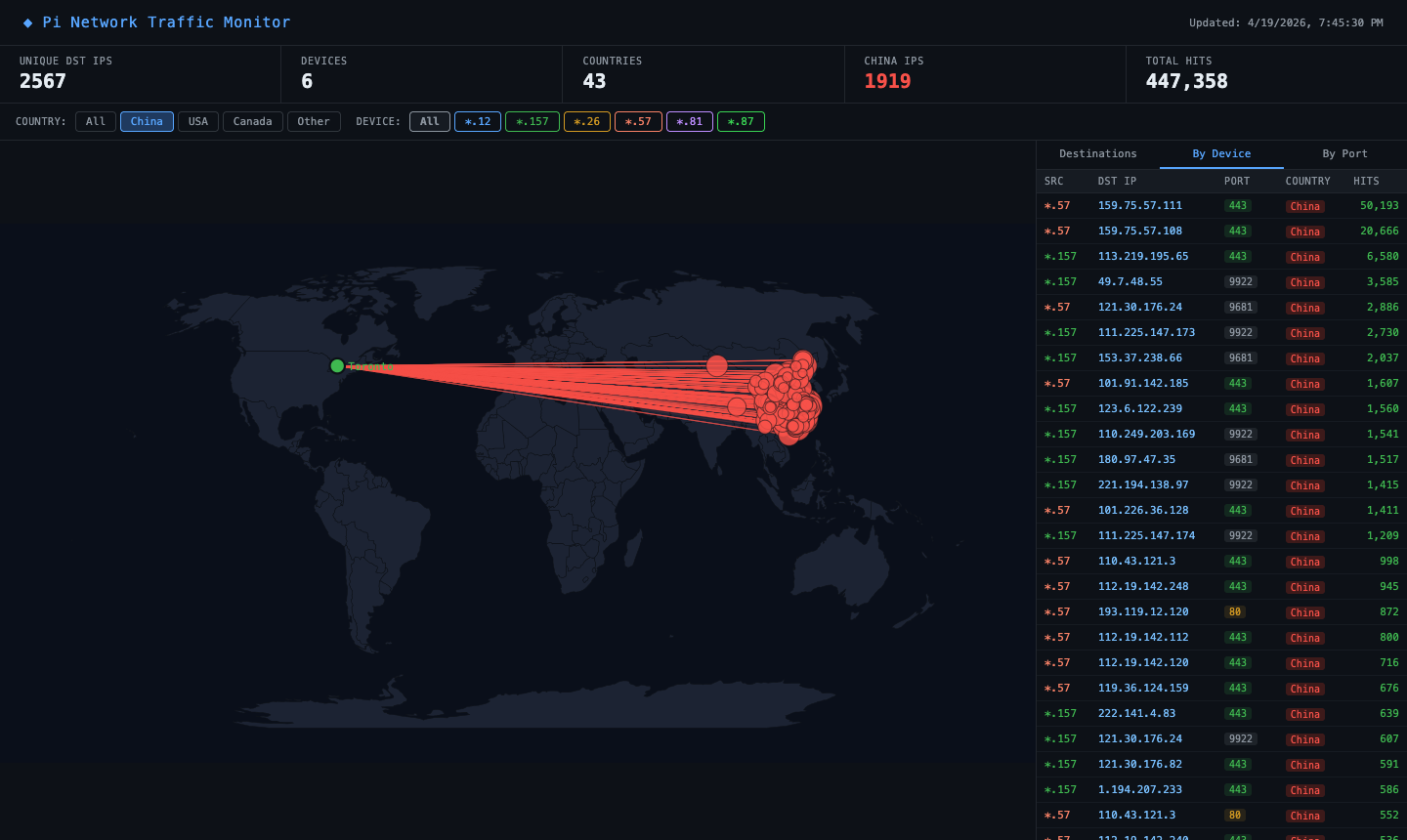
The dashboard (/var/www/traffic/index.html) is a self-contained dark-themed page built on Leaflet.js and OpenStreetMap. It reads ips.json on load, plots each destination as a bubble on a world map, and draws connection lines from your home location (Toronto). All geo data is pre-baked in the JSON — no live API calls from the browser.
Key features:
- Country filter buttons (All / China / USA / Canada / Other)
- Device filter buttons — one per device, colour-coded (e.g.
*.57,*.157) - Destinations sidebar tab — IP, port, country, org, hit count
- By Device tab — every
src → dstpair with port and hits - By Port tab — port breakdown with service names (443 = HTTPS, 53 = DNS, etc.)
- Bubble size = hit count; line colour = country or device depending on active filter

The “By Device” tab breaks down each connection by source device (shown as the last octet of the device IP), so you can see exactly which device is responsible for which traffic:

Filtering to China is where things get interesting. Of 447k total hits, 1,919 destination IPs resolve to China — mostly Tencent and Alibaba infrastructure. Most came from one device (*.57):
A note on unknown countries
ip-api.com occasionally misses APNIC/CNNIC blocks. If you see ?? Unknown entries, the geo cache stores them and retries on the next cron run. The fallback is ipapi.co. For truly stubborn IPs you can look them up manually on ip-api.com and patch geo_cache.json directly.
Useful One-Liners
All of these run on the Pi via SSH.
Connected devices right now:
cat /var/lib/misc/dnsmasq.leasesTop 20 domains queried today:
sudo journalctl -u dnsmasq --since today | grep "query\[A\]" | \
  awk '{print $NF}' | sort | uniq -c | sort -rn | head -20
Traffic volume per device today:
sudo journalctl -k --since today | grep "TRAFFIC" | \
  grep -oP "SRC=\K[^ ]+" | sort | uniq -c | sort -rn | head -20
Top destination IPs today:
sudo journalctl -k --since today | grep "TRAFFIC" | \
  grep -oP "DST=\K[^ ]+" | sort | uniq -c | sort -rn | head -20
Count HTTPS connections today:
sudo journalctl -k --since today | grep "TRAFFIC" | grep "DPT=443" | wc -lWatch one specific device:
sudo journalctl -fu dnsmasq | grep "192.168.50.57"Troubleshooting
Phone can’t connect to PiMonitor:
sudo systemctl status hostapd   # check for errors
rfkill list                     # is radio blocked?
sudo rfkill unblock wlan
ip addr show wlan0              # must show 192.168.50.1
Connected but no internet:
cat /proc/sys/net/ipv4/ip_forward   # must be 1
sudo nft -f /etc/nftables.conf      # re-apply NAT rules
ping -c 3 8.8.8.8                   # test eth0 has internet
No traffic in logs:
sudo nft list ruleset # verify "log prefix [TRAFFIC]" and "masquerade" are presentFull restart sequence (when things get out of order):
sudo rfkill unblock wlan
sudo systemctl restart wifi-unblock
sudo systemctl restart hostapd
sudo systemctl restart wlan0-setup
sudo systemctl restart dnsmasq
sudo nft -f /etc/nftables.conf
Network Summary
| Interface | IP | Role |
|---|---|---|
eth0 | DHCP from modem | WAN — internet uplink |
wlan0 | 192.168.50.1 (static) | LAN — WiFi AP gateway |
| Devices | 192.168.50.10–200 | Clients |
Key Files
| File | Purpose |
|---|---|
/etc/hostapd/hostapd.conf | WiFi AP name, password, band |
/etc/default/hostapd | Points system to the config above |
/etc/dnsmasq.conf | DHCP range + DNS logging |
/etc/nftables.conf | NAT + per-packet traffic logging |
/etc/sysctl.d/99-forwarding.conf | Enables IP forwarding |
/etc/systemd/system/wlan0-setup.service | Assigns wlan0 IP on boot |
/etc/systemd/system/wifi-unblock.service | Unblocks WiFi radio on boot |
The whole stack — hostapd + dnsmasq + nftables — runs comfortably on a Pi 5 with headroom to spare. Total idle CPU is under 5%. The NVMe SSD makes log writes fast and keeps wear off the SD card. I’ve had it running for weeks now without intervention, and it’s been eye-opening to see just how chatty smart home devices are.