My Linux server is CentOS 7. Since CentOS 8 was out for a year already, I’m looking into moving my server environment from CentOS 7 to 8. I’m doing the set up in virtual environment to familiar all the steps first. In the post, I’m going to document every step. This will be the instruction later when I actually upgrage my server environment.
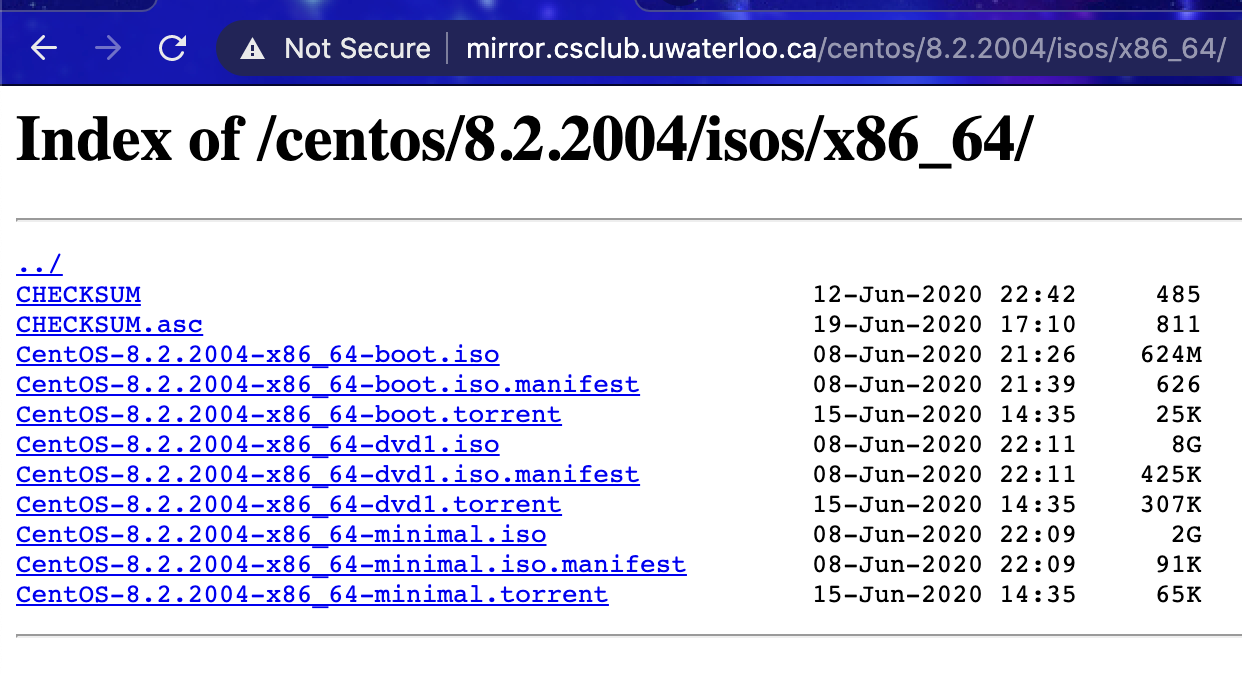
To download, go to https://www.centos.org/download/. For my server environment, I will just need the minimum version. I download the minimum.iso file to my machine.
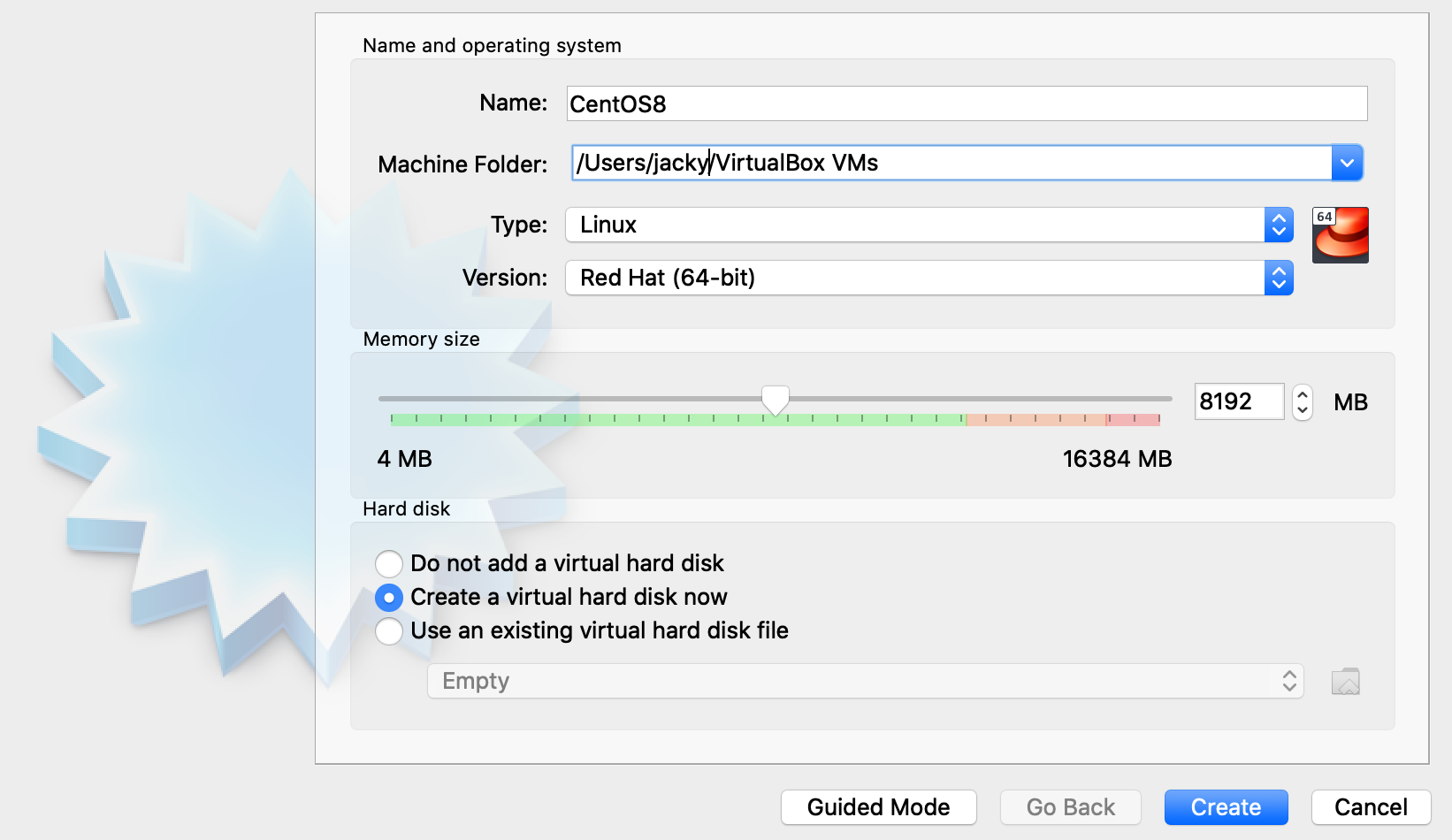
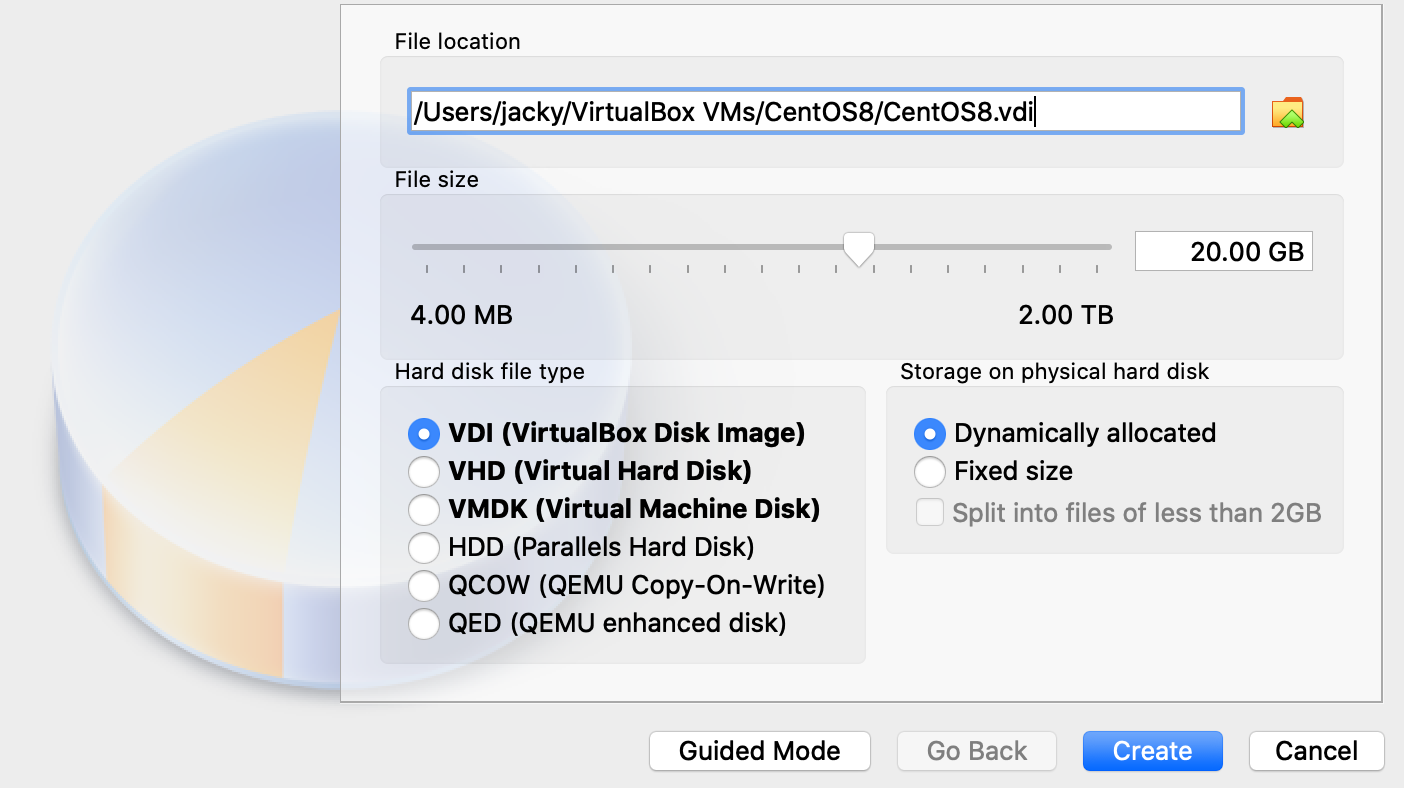
Create the VM for installing CentOS 8. For memory, I allocate 8G. For hard drive size, use 20G. After the VM created, in setting, configure the CD drive to use the downloaded iso file.
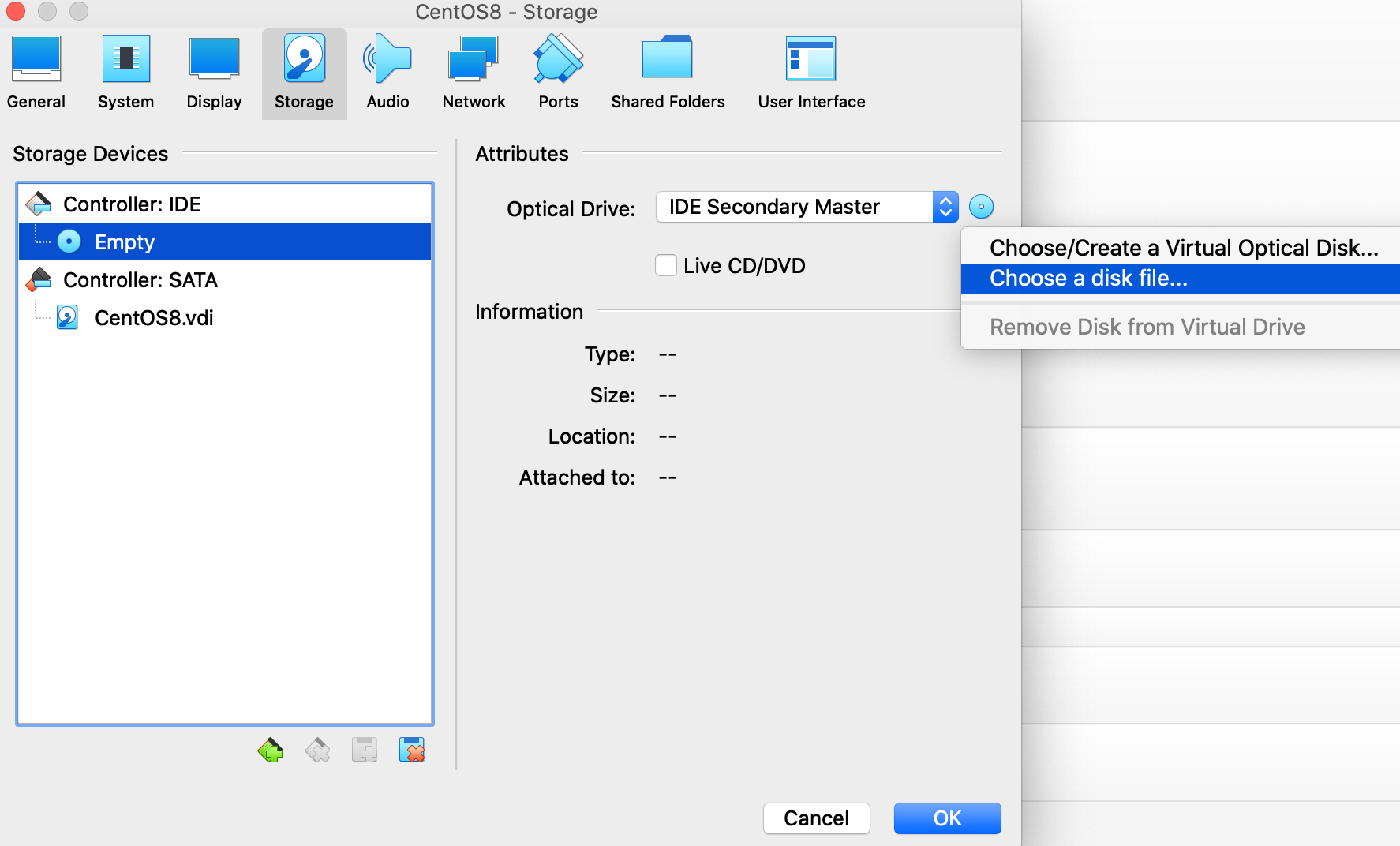
Start up the VM and install the CentOS 8. It’s pretty straightforward to install it. After installation, remove the iso file in the CD drive setting in VirtualBox. Reboot the server, you will get terminal command line interface since we didn’t install GUI.

Login to the VM, configure network. In VirtualBox setting, the network adapter type select Bridged Adapter. Name choose the one has connection from host environment.
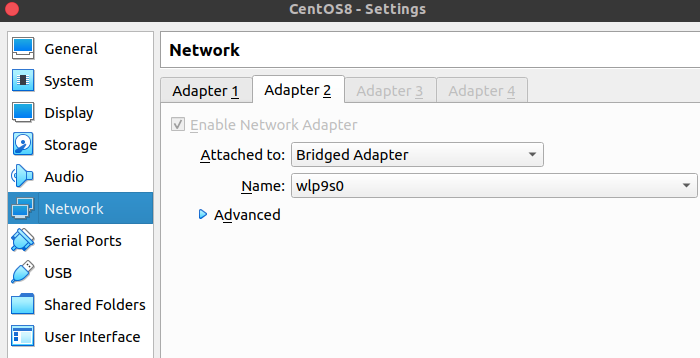
Commands to show network device status
[jacky@cent8 ~]$ nmcli dev status
DEVICE  TYPE      STATE      CONNECTION
enp0s3  ethernet  connected  enp0s3
enp0s8  ethernet  connected  enp0s8
lo      loopback  unmanaged  --
[jacky@cent8 ~]$ nmcli con show
NAME    UUID                                  TYPE      DEVICE
enp0s3  ccecde87-d1a6-4690-891a-748b1f33433c  ethernet  enp0s3
enp0s8  2fe5915b-f14e-4292-86af-fa53c91a39d3  ethernet  enp0s8
[jacky@cent8 ~]$
If network card is shown as disconnected above, use below command to connect it.
[jacky@cent8 ~]$ sudo nmcli dev connect enp0s8If using wifi when doing minimal installation, NetworkManager-wifi needs to be manually installed. You have to connect LAN first. Install the package first.
[jacky@cent8 ~]$ sudo dnf NetworkManager-wifi
[jacky@cent8 ~]$ sudo systemctl restart NetworkManager
Command to configure network card connect automatically. Select the network card want to edit.
[jacky@cent8 ~]$ sudo nmtui-edit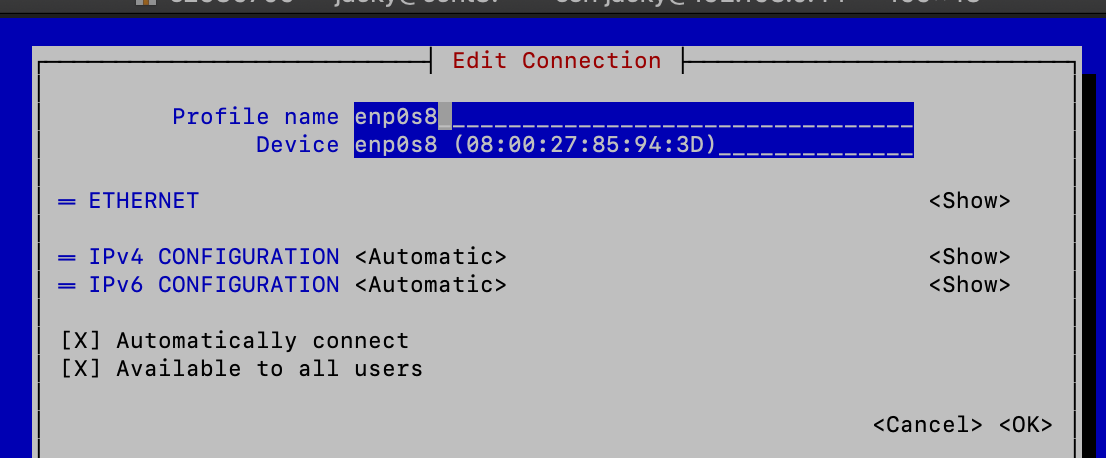
Next, update CentOS 8 to the latest
[jacky@cent8 ~]$ sudo dnf updateUpdate system service maximum number of open files
[jacky@cent8 systemd]$ sudo vi system.conf
...
DefaultLimitNOFILE=99999
Install Java SDK 11
[jacky@cent8 ~]$ sudo dnf install java-11-openjdk-devel

...

[jacky@cent8 ~]$ java -version
openjdk version "11.0.9" 2020-10-20 LTS
OpenJDK Runtime Environment 18.9 (build 11.0.9+11-LTS)
OpenJDK 64-Bit Server VM 18.9 (build 11.0.9+11-LTS, mixed mode, sharing)

[jacky@cent8 ~]$ which java
/usr/bin/java
[jacky@cent8 ~]$
Install MySQL server
[jacky@cent8 ~]$ sudo dnf install mysql-server

...

Install  54 Packages
Total download size: 51 M
Installed size: 228 M
Is this ok [y/N]: y
Complete!
[jacky@cent8 ~]$ sudo systemctl start mysqld.service

[jacky@cent8 ~]$ sudo systemctl status mysqld.service
● mysqld.service - MySQL 8.0 database server
   Loaded: loaded (/usr/lib/systemd/system/mysqld.service; disabled; vendor preset: disabled)
   Active: active (running) since Wed 2020-11-18 16:32:31 EST; 14s ago
  Process: 55682 ExecStartPost=/usr/libexec/mysql-check-upgrade (code=exited, status=0/SUCCESS)
  Process: 55555 ExecStartPre=/usr/libexec/mysql-prepare-db-dir mysqld.service (code=exited, status=0/SUCCESS)
  Process: 55531 ExecStartPre=/usr/libexec/mysql-check-socket (code=exited, status=0/SUCCESS)
 Main PID: 55637 (mysqld)
   Status: "Server is operational"
    Tasks: 39 (limit: 49766)
   Memory: 428.7M
   CGroup: /system.slice/mysqld.service
           └─55637 /usr/libexec/mysqld --basedir=/usr

Nov 18 16:32:16 cent8.jszsoft.com systemd[1]: Starting MySQL 8.0 database server...
Nov 18 16:32:16 cent8.jszsoft.com mysql-prepare-db-dir[55555]: Initializing MySQL database
Nov 18 16:32:31 cent8.jszsoft.com systemd[1]: Started MySQL 8.0 database server.

[jacky@cent8 ~]$ sudo systemctl enable mysqld
Created symlink /etc/systemd/system/multi-user.target.wants/mysqld.service → /usr/lib/systemd/system/mysqld.service.
Secure MySQL server, setting up root password, removing test database ..
[jacky@cent8 ~]$ sudo mysql_secure_installation
...
[jacky@cent8 ~]$ mysqladmin -u root -p version
Enter password:
mysqladmin  Ver 8.0.21 for Linux on x86_64 (Source distribution)
Copyright (c) 2000, 2020, Oracle and/or its affiliates. All rights reserved.

Oracle is a registered trademark of Oracle Corporation and/or its
affiliates. Other names may be trademarks of their respective
owners.

Server version		8.0.21
Protocol version	10
Connection		Localhost via UNIX socket
UNIX socket		/var/lib/mysql/mysql.sock
Uptime:			16 min 8 sec

Threads: 2  Questions: 14  Slow queries: 0  Opens: 131  Flush tables: 3  Open tables: 49  Queries per second avg: 0.014
Grant root user for all databases and create another user for quartz database
[jacky@cent8 ~]$ mysql -u root -p
mysql> CREATE USER 'root'@'%' IDENTIFIED BY 'Cent&2019';
Query OK, 0 rows affected (0.02 sec)

mysql> GRANT ALL PRIVILEGES ON *.* TO 'root'@'%' WITH GRANT OPTION;
Query OK, 0 rows affected (0.02 sec)
mysql> CREATE USER 'quartz'@'%' IDENTIFIED BY 'Quartz&2019';
Query OK, 0 rows affected (0.02 sec)

mysql> GRANT SELECT,INSERT,UPDATE,DELETE ON quartz.* TO 'quartz'@'%';
Query OK, 0 rows affected (0.01 sec)
mysql> FLUSH PRIVILEGES;
Query OK, 0 rows affected (0.01 sec)

mysql> create database quartz;
Query OK, 1 row affected (0.03 sec)
Open firewall for MySQL port 3306.
## Show active zone
[jacky@cent8 ~]$ firewall-cmd --get-active-zones
public
  interfaces: enp0s3 enp0s8

## Change active zone to home
[jacky@cent8 ~]$ sudo firewall-cmd --zone=home --change-interface=enp0s3
success
[jacky@cent8 ~]$ sudo firewall-cmd --zone=home --change-interface=enp0s8
success
[jacky@cent8 ~]$ sudo firewall-cmd --set-default-zone home
[jacky@cent8 ~]$
success

## Open port 3306 for home zone
[jacky@cent8 ~]$ sudo firewall-cmd --permanent --zone=home --add-port=3306/tcp
success

##Reload firewall setting
[jacky@cent8 ~]$ sudo firewall-cmd --reload
success
[jacky@cent8 yum.repos.d]$ sudo firewall-cmd --get-active-zones
home
  interfaces: enp0s3 enp0s8
Install MongoDB 4.4.
[jacky@cent8 ~]$ sudo vi /etc/yum.repos.d/mongodb-org.repo

[mongodb-org]
name=MongoDB Repository
baseurl=https://repo.mongodb.org/yum/redhat/$releasever/mongodb-org/4.4/x86_64/
gpgcheck=1
enabled=1
gpgkey=https://www.mongodb.org/static/pgp/server-4.4.asc
[jacky@cent8 ~]$ dnf repolist
repo id repo name
AppStream CentOS-8 - AppStream
BaseOS CentOS-8 - Base
extras CentOS-8 - Extras
mongodb-org MongoDB Repository[jacky@cent8 ~]$ sudo dnf install mongodb-org[jacky@cent8 yum.repos.d]$ sudo systemctl start mongod
[jacky@cent8 ~]$ sudo systemctl status mongod
● mongod.service - MongoDB Database Server
Loaded: loaded (/usr/lib/systemd/system/mongod.service; enabled; vendor preset: disabled)
Active: active (running) since Wed 2020-11-18 18:50:34 EST; 19s ago
Docs: https://docs.mongodb.org/manual
Process: 57246 ExecStart=/usr/bin/mongod $OPTIONS (code=exited, status=0/SUCCESS)
Process: 57244 ExecStartPre=/usr/bin/chmod 0755 /var/run/mongodb (code=exited, status=0/SUCCESS)
Process: 57242 ExecStartPre=/usr/bin/chown mongod:mongod /var/run/mongodb (code=exited, status=0/SUCCESS)
Process: 57240 ExecStartPre=/usr/bin/mkdir -p /var/run/mongodb (code=exited, status=0/SUCCESS)
Main PID: 57248 (mongod)
Memory: 60.5M
CGroup: /system.slice/mongod.service
└─57248 /usr/bin/mongod -f /etc/mongod.conf
Nov 18 18:50:33 cent8.jszsoft.com systemd[1]: Starting MongoDB Database Server...
Nov 18 18:50:33 cent8.jszsoft.com mongod[57246]: about to fork child process, waiting until server is ready for connections.
Nov 18 18:50:33 cent8.jszsoft.com mongod[57246]: forked process: 57248
Nov 18 18:50:34 cent8.jszsoft.com mongod[57246]: child process started successfully, parent exiting
Nov 18 18:50:34 cent8.jszsoft.com systemd[1]: Started MongoDB Database Server.
[jacky@cent8 ~]$ sudo systemctl enable mongod
[jacky@cent8 ~]$[jacky@cent8 ~]$ mongo --eval 'db.runCommand({ connectionStatus: 1 })'
MongoDB shell version v4.4.2
connecting to: mongodb://127.0.0.1:27017/?compressors=disabled&gssapiServiceName=mongodb
Implicit session: session { "id" : UUID("434f3c4b-275f-42d2-89a5-ed959cb0c111") }
MongoDB server version: 4.4.2
{
"authInfo" : {
"authenticatedUsers" : [ ],
"authenticatedUserRoles" : [ ]
},
"ok" : 1
}Modify /etc/mongod.conf to allow remote IP to connect
# network interfaces
net:
  port: 27017
  bindIp: 0.0.0.0  # Enter 0.0.0.0,:: to bind to all IPv4 and IPv6 addresses or, alternatively, use the net.bindIpAll setting.
Open firewall port 27017 to allow remote connect
## Open port 27017 for home zone
[jacky@cent8 ~]$ sudo firewall-cmd --permanent --zone=home --add-port=27017/tcp
success
##Reload firewall setting
[jacky@cent8 ~]$ sudo firewall-cmd --reload
success
For using the existing MongoDB data path, need to make sure the user id and group id are the same as in the old system. I’m moving the path to /home/data folder. For some reason I have to disable SELinux, otherwise I keep getting mongod.lock permission denied, even I have changed the owner. Production environment not suggested to do so.
## Change user, group id
[jacky@cent8 ~]$ sudo usermod -u 987 mongod

[jacky@cent8 ~]$ sudo groupmod -g 981 mongod

[jacky@cent8 data]$ id mongod
uid=987(mongod) gid=981(mongod) groups=981(mongod)

##Change mongoDB path ownership
[jacky@cent8 ~]$ sudo chown -R mongod:mongod /home/data/mongo

##Change mongoDB log path ownership
[jacky@cent8 ~]$ sudo chown -R mongod:mongod /var/log/mongo

##disable SELinux
[jacky@cent8 ~]$ sudo vi /etc/selinux/config

..
SELINUX=disabled
..
Install Redis server
[jacky@cent8 ~]$ sudo dnf install redis
 ...
[jacky@cent8 ~]$ sudo systemctl start redis
[jacky@cent8 ~]$ sudo systemctl enable redis
Install Nginx server
[jacky@cent8 ~]$ sudo dnf install nginx
 ...
[jacky@cent8 ~]$ sudo systemctl start nginx
[jacky@cent8 ~]$ sudo systemctl enable nginx
Install NodeJS
## List module streams
[jacky@cent8 ~]$ sudo dnf module list nodejs
 ...
Last metadata expiration check: 1:36:26 ago on Wed 18 Nov 2020 06:47:18 PM EST.
CentOS-8 - AppStream
Name          Stream             Profiles                                        Summary
nodejs        10 [d]             common [d], development, minimal, s2i           Javascript runtime
nodejs        12                 common [d], development, minimal, s2i           Javascript runtime

Hint: [d]efault, [e]nabled, [x]disabled, [i]nstalled
[jacky@cent8 ~]$ sudo dnf module enable nodejs:12
[jacky@cent8 ~]$ sudo dnf install nodejs

## Install Development Tools for building Node software
[jacky@cent8 ~]$ sudo dnf -y install -y gcc-c++ make

[jacky@cent8 ~]$ node --version
v12.18.4
[jacky@cent8 ~]$ npm -v
6.14.6
Install PM2
[jacky@cent8 ~]$ sudo npm i -g pm2
 ..
[jacky@cent8 ~]$ pm2 -v
That’s about it. I’ve installed the stuff I need.