Recently did a lot of React unit test cases. Today have a summary how to use Jest and Testing Library to write test cases. Some libraries used below like Jest, Testing Library, and jest-when.
First, add dependency to package.json, also add Jest configuration.
  "devDependencies": {
    ...
    "@testing-library/jest-dom": "^4.2.4",
    "@testing-library/user-event": "^7.2.1",
    "@testing-library/react": "^9.5.0",
    "@types/jest-when": "^2.7.2",
    "jest": "^26.6.3",
    "jest-environment-jsdom": "^26.6.2",
    "jest-environment-jsdom-global": "^2.0.4",
    "jest-junit": "^12.0.0",
    "jest-when": "^3.2.1",
    ...
  },
"jest": {
  "testEnvironment": "jest-environment-jsdom-global",
  "testMatch": [
    "**/__tests__/**/*.[jt]s?(x)",
    "**/__test__/**/*.[jt]s?(x)",
    "**/?(*.)+(spec|test).[jt]s?(x)"
  ],
  "setupFilesAfterEnv": [
    "<rootDir>/src/test/setupTests.js"
  ],
  "setupFiles": [
    "raf/polyfill"
  ],
  "transform": {
    "^.+\.js?$": "babel-jest"
  },
  "moduleNameMapper": {
    "\.(jpg|jpeg|png|gif|eot|otf|webp|svg|ttf|woff|woff2|mp4|webm|wav|mp3|m4a|aac|oga)$": "<rootDir>/src/test/assetsTransformer.js",
    "\.(css|less)$": "<rootDir>/src/test/assetsTransformer.js",
    "^app(.*)$": "<rootDir>/src$1"
  },
  "collectCoverage": true,
  "reporters": [
    "default",
    "jest-junit"
  ],
  "coverageDirectory": "package/coverage",
  "collectCoverageFrom": [
    "src/**/*.js",
    "!src/index.js",
    "!src/App.js",
    "!src/i18n.js",
    "!src/store/configureStore.js"
  ],
  "coverageReporters": [
    "json",
    "lcov",
    "text-summary"
  ],
  "coveragePathIgnorePatterns": [
    "/node_modules/",
    "/src/precompiled/",
    "/src/test"
  ],
  "testPathIgnorePatterns": [
    "/node_modules/",
    "src/test"
  ],
  "coverageThreshold": {
    "global": {
      "functions": 80,
      "lines": 80,
      "statements": 80
    }
  }
},
"jest-junit": {
  "outputDirectory": "package/coverage"
}
Below it’s the component I’m writing test cases for.
import React, { useState, useContext } from 'react';
import { withStyles } from '@material-ui/core/styles';
import { useTranslation } from 'react-i18next';
import Button from '@material-ui/core/Button';
import Dialog from '@material-ui/core/Dialog';
import MuiDialogTitle from '@material-ui/core/DialogTitle';
import MuiDialogContent from '@material-ui/core/DialogContent';
import IconButton from '@material-ui/core/IconButton';
import CloseIcon from '@material-ui/icons/Close';
import Typography from '@material-ui/core/Typography';
import TextField from '@material-ui/core/TextField';
import Grid from '@material-ui/core/Grid';
import { Container } from '@material-ui/core';
import CssBaseline from '@material-ui/core/CssBaseline';
import theme from '../../config/theme.json';
import { Store } from '../../Store';
import { BACK_APPOINTMENT_REQ_URL } from '../../config/endUrl';
import {
  REQUEST_HEADER,
  APPOINTMENT_RECEIVE_EMAIL,
  SEND_APPOINTMENT_EMAIL,
} from '../../config/defaults';
import { simpleRequest } from '../../utils/Api';
import { isValidEmail } from '../../utils/utility';

const styles = (theme) => ({
  root: {
    margin: 5,
    padding: theme.spacing(2),
  },
  closeButton: {
    position: 'absolute',
    right: theme.spacing(1),
    top: theme.spacing(1),
    color: theme.palette.grey[500],
  },
  button: {
    margin: theme.spacing(1),
  },
  paper: {
    marginTop: theme.spacing(8),
    display: 'flex',
    flexDirection: 'column',
    alignItems: 'center',
  },

  submit: {
    margin: theme.spacing(3, 0, 2),
  },
});

const DialogTitle = withStyles(styles)((props) => {
  const { children, classes, onClose, ...other } = props;
  return (
    <MuiDialogTitle disableTypography className={classes.root} {...other}>
      <Typography variant="h6">{children}</Typography>
      {onClose ? (
        <IconButton
          aria-label="close"
          className={classes.closeButton}
          iconstyle={classes.largeIcon}
          onClick={onClose}
        >

          <CloseIcon style={{ fontSize: 40 }} />
        </IconButton>
      ) : null}
    </MuiDialogTitle>
  );
});

const DialogContent = withStyles((theme) => ({
  root: {
    padding: theme.spacing(2),
  },
}))(MuiDialogContent);

export default function ContactMe(props) {
  const { dispatch } = useContext(Store);
  const { t } = useTranslation();
  const { listing, closeContactMe } = props;
  const descText =
    'I want to book an appointment to view MLS# ' +
    listing.mlsNum +
    ', address: ' +
    (listing.type === 'CND'
      ? listing.apartmentNum
        ? listing.apartmentNum + ', ' + listing.address
        : listing.address
      : listing.address) +
    '.\n';
  const [description, setDescription] = useState(descText);
  const [name, setName] = useState('');
  const [email, setEmail] = useState('');
  const [phone, setPhone] = useState('');
  const [errorMessage, setErrorMessage] = useState('');

  const submitRequest = async () => {
    const emailSubject = 'Appointment request for ' + listing.mlsNum + ', requested by ' + name;
    const emailText =
      'Requestor Name: ' +
      name +
      '\nRequestor email: ' +
      email +
      '\nRequestor phone: ' +
      phone +
      '\n\n' +
      description;
    const data = {
      request: {
        requestHeader: REQUEST_HEADER,
        data: { email: APPOINTMENT_RECEIVE_EMAIL, emailSubject, emailText },
      },
    };

    await simpleRequest(BACK_APPOINTMENT_REQ_URL, data, 'POST', dispatch);
  };

  const handleClose = () => {
    closeContactMe();
  };

  const handleSendInformation = () => {
    setErrorMessage('');

    // Check error
    if (!name || !email || !phone) {
      setErrorMessage(t('input_valid_information'));
    } else {
      if (isValidEmail(email)) {
        if (SEND_APPOINTMENT_EMAIL) {
          submitRequest();
        }

        closeContactMe(true);
      } else {
        setErrorMessage(t('input_valid_information'));
      }
    }
  };

  return (
    <div>
      <Dialog onClose={handleClose} aria-labelledby="customized-dialog-title" open={true}>
        <DialogTitle id="customized-dialog-title" onClose={handleClose}></DialogTitle>
        <DialogContent>
          <CssBaseline />
          <Container maxWidth="lg">
            <Typography variant="h6" component="h6" style={{ color: theme.color_red }}>
              {errorMessage}
            </Typography>
            <Grid container spacing={2}>
              <Grid item xs={12}>
                <TextField
                  variant="outlined"
                  margin="normal"
                  required
                  fullWidth
                  id="name"
                  label={t('your_name')}
                  name="name"
                  autoComplete="name"
                  autoFocus
                  value={name}
                  data-testid="contact_me_name"
                  onChange={(event) => {
                    setName(event.target.value);
                  }}
                />
              </Grid>

              <Grid item xs={12}>
                <TextField
                  variant="outlined"
                  margin="normal"
                  required
                  fullWidth
                  id="email"
                  label={t('email')}
                  name="email"
                  autoComplete="email"
                  value={email}
                  data-testid="contact_me_email"
                  onChange={(event) => {
                    setEmail(event.target.value);
                  }}
                />
              </Grid>

              <Grid item xs={12}>
                <TextField
                  variant="outlined"
                  margin="normal"
                  required
                  fullWidth
                  id="phone"
                  label={t('phone_number')}
                  name="phone"
                  autoComplete="phone"
                  data-testid="contact_me_phone"
                  value={phone}
                  onChange={(event) => {
                    setPhone(event.target.value);
                  }}
                />
              </Grid>

              <Grid item xs={12}>
                <TextField
                  variant="outlined"
                  margin="normal"
                  required
                  fullWidth
                  id="description"
                  label={t('request_info')}
                  name="description"
                  value={description}
                  multiline
                  data-testid="contact_me_description"
                  rows={3}
                  rowsMax={4}
                  onChange={(event) => {
                    setDescription(event.target.value);
                  }}
                />
              </Grid>
            </Grid>

            <Grid container spacing={2} style={{ marginTop: 25, marginBottom: 30 }}>
              <Grid item xs={12}>
                <Button
                  margin="normal"
                  fullWidth
                  variant="contained"
                  color="primary"
                  id="submit"
                  className={styles.submit}
                  size="large"
                  data-testid="contact_me_submit"
                  onClick={() => {
                    handleSendInformation();
                  }}
                >
                  {t('submit_request')}
                </Button>
              </Grid>
            </Grid>
          </Container>
        </DialogContent>
      </Dialog>
    </div>
  );
}
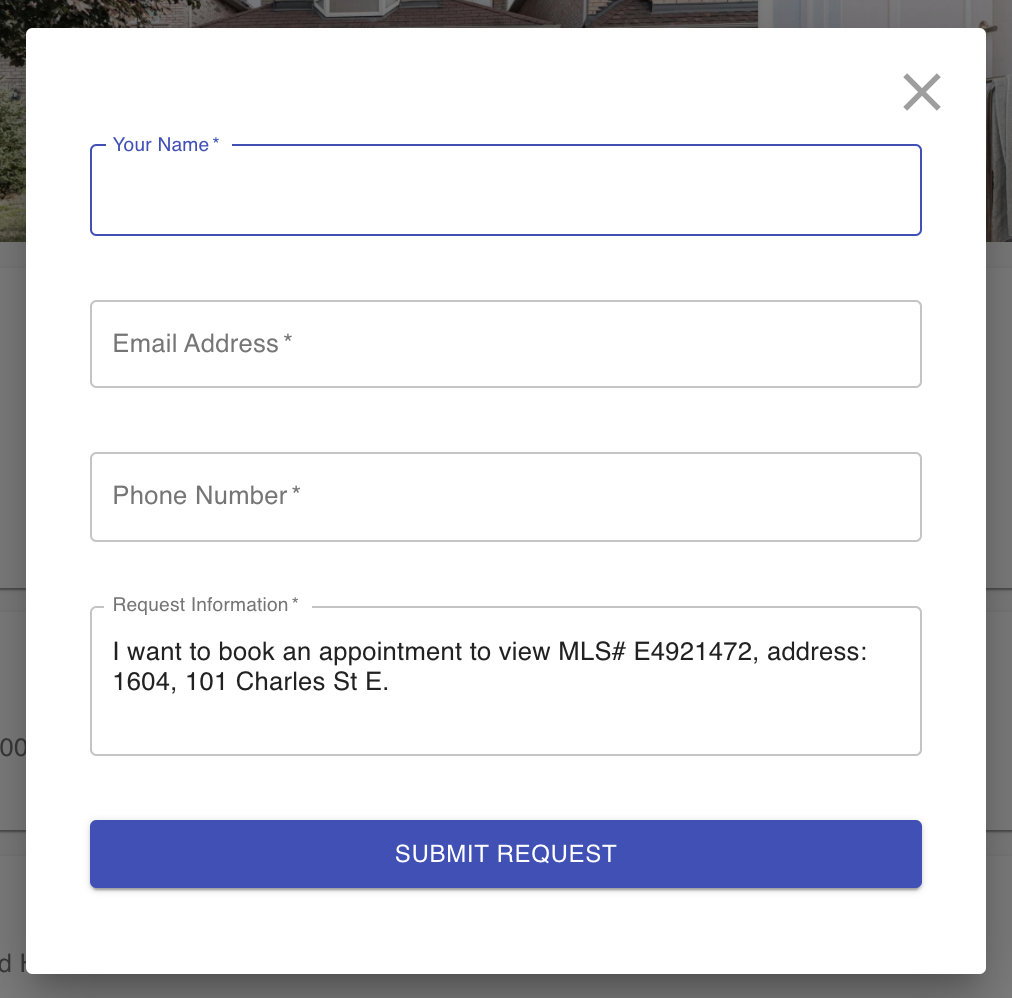
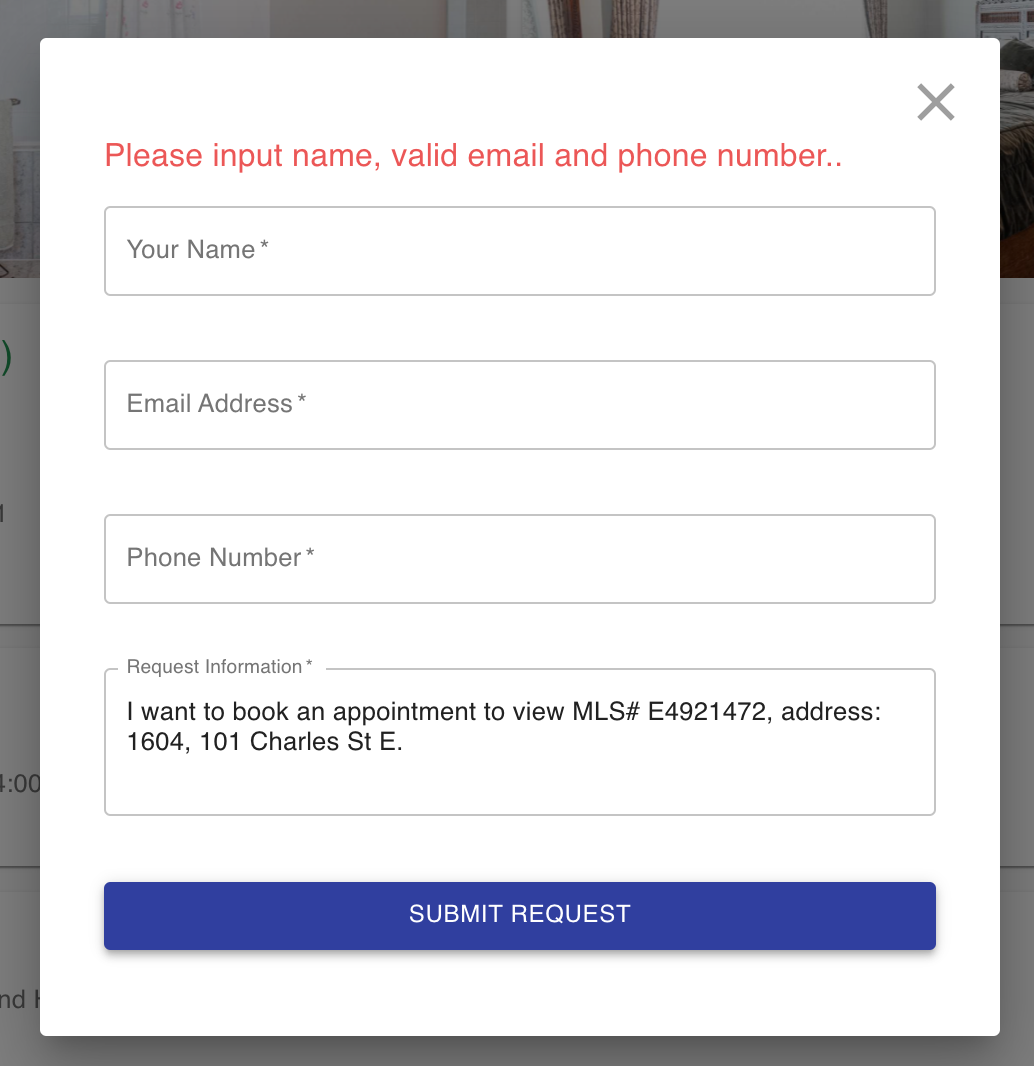
The component in the application looks like below. It has three text boxes to input name, email and phone number. And a pre-populated test area. One submit button and one close button. When not entering name or email or phone and click submit button, an error message will show up on top. If information input and click button, form submission will be successful. Close button show be able to click as well. Also this component should be wrapped by store. It has side effect and supports multiple languages.
OK. Now we can write test cases on it.
First we need to import dependencies and mock i18n and API call. In this case we don’t care getting data back from API call. If you look at the mock code for i18n, basically it just returns the key, where in the real situation, it returns the translation based on the key.
import React from 'react';
import ContactMe from '../ContactMe';
import { StoreProvider } from '../../../Store';
import { render, screen, fireEvent, waitForElement } from '@testing-library/react';
import '@testing-library/jest-dom/extend-expect';

jest.mock('react-i18next', () => ({
  useTranslation: () => {
    return {
      t: (str) => str,
      i18n: {
        changeLanguage: () => new Promise(() => {})
      }
    };
  }
}));

jest.mock('../../../utils/Api', () => ({
  simpleRequest: jest.fn()
}));
Then prepare some data for test cases.
describe('ContactMe', () => {
  describe('rendering ', () => {
    const listing = {
      mlsNum: 'C123456',
      type: 'CND',
      apartmentNum: '1910',
      address: '1 Toronto drive'
    };

    const listing2 = {
      mlsNum: 'C123456',
      type: 'RES',
      address: '1 Toronto drive'
    };

    const listing3 = {
      mlsNum: 'C123456',
      type: 'CND',
      address: '1 Toronto drive'
    };
First test is positive test. We will simulate key in information and click submit button.
Since the component has side effect, it updates store. We need to use store to wrap the component before render. For easier to locate the element, we should add data-testid in the code, use the help of Testing Library API getByTestId. The element located by getByTestId may not be the final element contains the content you want to test. You can use querySelector for further locating the place you want. Since rendering is async, sometimes you need to await the rendering to finish. If you don’t wait, you might get warning message complaining that. fireEvent is the API you use to simulate text input, mouse click. You can check the site for detail usage. You should set your expect in the test case. Testing Library provides a lot of ways for checking the expecting result.
    it('should render with all information input and submit', async () => {
      const utils = render(
        <StoreProvider
          value={{
            dispatch: jest.fn(),
            state: { logged: false, loading: false, user: {}, menuList: [], zoomLevel: 16 }
          }}
        >
          <ContactMe listing={listing} closeContactMe={jest.fn()} />
        </StoreProvider>
      );

      const nameInput = await waitForElement(() =>
        utils.getByTestId('contact_me_name').querySelector('#name')
      );
      fireEvent.change(nameInput, { target: { value: 'Jacky' } });
      expect(nameInput.value).toBe('Jacky');

      const emailInput = await waitForElement(() =>
        utils.getByTestId('contact_me_email').querySelector('#email')
      );
      fireEvent.change(emailInput, { target: { value: 'Jacky@test.com' } });
      expect(emailInput.value).toBe('Jacky@test.com');

      const phoneInput = await waitForElement(() =>
        utils.getByTestId('contact_me_phone').querySelector('#phone')
      );
      fireEvent.change(phoneInput, { target: { value: '6471234567' } });
      expect(phoneInput.value).toBe('6471234567');

      const descInput = await waitForElement(() =>
        utils.getByTestId('contact_me_description').querySelector('#description')
      );
      expect(descInput.value).toBe(
        'I want to book an appointment to view MLS# C123456, address: 1910, 1 Toronto drive.\n'
      );
      fireEvent.change(descInput, { target: { value: 'description' } });
      expect(descInput.value).toBe('description');

      const { getByTestId } = utils;
      const submitButton = await waitForElement(() =>
        getByTestId('contact_me_submit').querySelector('span')
      );
      await fireEvent.click(submitButton);
    });
Another library want to highlight is the jest-when. When we doing testing, the API we mocked is being called multiple times in the same component. And it’s expected to return different responses. For example, I have an API makes all backend calls. The component has multiple backend calls to retrieve different data with different endpoints. We can use jest-when to configure specific response based on specific input parameters. Like below example, based on different endpoint URL, I configured it with different responses.
  const Api = require('../../utils/Api');
  jest.spyOn(URLSearchParams.prototype, 'get').mockImplementation((key) => key);
  const mockSimpleRequest = jest.spyOn(Api, 'simpleRequest');

  when(mockSimpleRequest)
  .calledWith(BACK_GET_SESSION_URL, expect.anything(), 'POST', expect.anything())
  .mockImplementation(() =>
    Promise.resolve({
      status: '0',
      logged: true,
      user: {
        name: 'Jacky Zhang',
        thumbnail:
          'https://lh3.googleusercontent.com/a-/AOh14GjUrZ5lLxYafx5yP45AIBOz37spAuCtmnXyWPlglg',
        extraMenuList: [{ labelKey: 'admin', url: '/admin' }],
      },
    })
  );

  when(mockSimpleRequest)
  .calledWith(BACK_LAST_UPDATE_TIME_URL, expect.anything(), 'POST', expect.anything())
  .mockImplementation(() =>
    Promise.resolve({
      lastupdatetime: '2020-09-30T23:00:00',
    })
  );
Sometimes if you found it complains about rendering, you can wrap your component inside act like below.
      await act(async () => {
        utils = render(
          <StoreProvider
            value={{
              dispatch: () => jest.fn(),
              state: {
                logged: false,
                loading: false,
                user: {},
                menuList: [],
                zoomLevel: 16,
              },
            }}
          >
            <Home />
          </StoreProvider>
        );
      });